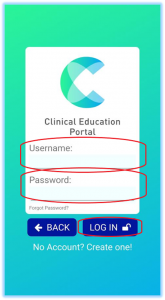
Once you have downloaded the app, find and click the app to open the CEP login process. You can log in as a preceptor or a student by clicking the login type shown in the sample screenshot below.
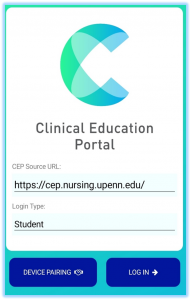
The “CEP Source URL” is a default source so you don’t have to change it. But if by any chance the CEP Source URL is not provided or accidentally erased, please type https://cep.nursing.upenn.edu. Once you provide the login type, you have different ways to login.
Device Pairing
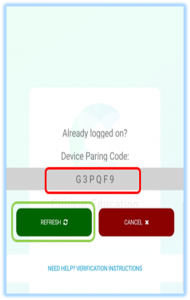
First is DEVICE PAIRING. In this process, you must use both your computer and your mobile device. From your CEP Mobile App, click the “DEVICE PAIRING” button. After clicking, a Device Pairing Code (encircled in RED) will be generated. You will need to provide this code on the dashboard of your computer (please see sample screenshot below). If the code is confusing (Number 0 vs Letter O), just click the “REFRESH” button (encircled in GREEN) to generate a new code. The generated codes will never expire even if you don’t use it.
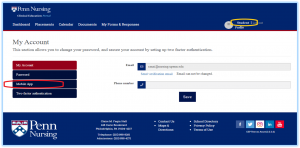
To continue the pairing process, you must log in to your account using your computer. Once logged in, on your Account Dashboard, click your Account Name in the top right corner of your account page (encircled in YELLOW). From your MY ACCOUNT PAGE, click the “Mobile App” icon (encircled in RED). Please see the sample screenshot below.
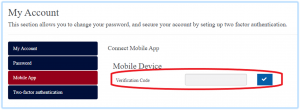
After clicking the Mobile App icon, this page will appear where you will need to enter the generated code from your mobile device (encircled in RED). Once the code entered, just click the checkbox to the right of the input box. Please see the sample screenshot below.
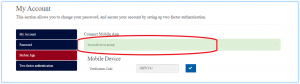
Your Mobile App will automatically log in and your account, and you will see the pairing process is successful on your computer account (encircled in RED). Please see the sample screenshot below.
Direct Login
Another way to access your Mobile App account is the “Direct Log In” from your phone. On your CEP mobile app click the “Log in” button right next to the device pairing button. Once clicked, it will take you to a page where you need to input your credentials and click the “Log In” button below (all encircled in RED), just as if you were logging in from your computer. You are now all set using the CEP Mobile App. Please see the sample screenshot below.